
Table of contents:
- Why Professional Financial Reports Matter in 2026
- Step-by-Step Guide: How to Create Professional Financial Reports in Excel
- Free English Excel Financial Report Templates (2026)
- Best Practices for Professional Financial Reporting in Excel
- Common Mistakes to Avoid
- Comparison: Basic vs. Professional Excel Financial Reports
- FAQ
- Kesimpulan
Creating professional financial reports in Excel remains one of the most valuable skills for small business owners, accountants, managers, and finance professionals. In 2026, with advanced features like dynamic arrays, Power Query enhancements, and improved PivotTables, Excel continues to be a powerful, accessible tool for generating accurate, insightful, and visually appealing financial statements.
Whether you need monthly management reports, quarterly board presentations, or annual financial overviews, this comprehensive guide walks you through the process step by step. You’ll learn best practices, essential templates, and techniques to build reusable, error-resistant reports that look professional and support better decision-making.
Why Professional Financial Reports Matter in 2026
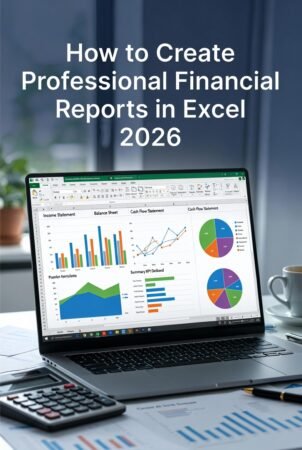
Well-designed financial reports do more than summarize numbers — they tell a story. Clear income statements, balance sheets, and cash flow statements help stakeholders understand profitability, financial health, liquidity, and trends. Poorly formatted reports, on the other hand, can hide critical insights or erode credibility.
Key benefits include:
- Faster decision-making through visual dashboards
- Easier compliance and auditing
- Better communication with investors, banks, or management
- Time savings via automation and reusable templates
Following structured best practices — such as separating inputs from calculations and using consistent formatting — ensures your reports are clear, consistent, and auditable.
Step-by-Step Guide: How to Create Professional Financial Reports in Excel
Step 1: Set Up Your Workbook Structure
Start with a clean, organized workbook. Name it clearly (e.g., “Financial_Reports_Q2_2026_CompanyName.xlsx”).
Recommended sheet structure:
- Raw Data or Transactions — Import or enter source data here
- Inputs — Assumptions, parameters, and manual entries
- Calculations — Supporting schedules and formulas (keep hidden or protected if needed)
- Income Statement
- Balance Sheet
- Cash Flow Statement
- Dashboard or Summary
- Charts & Visuals
Use color coding: blue for inputs, black for formulas, and green for totals. This improves auditability and reduces errors.25
Step 2: Prepare and Clean Your Data
Import data from accounting software, bank statements, or ERP systems. Use Power Query (Data > Get Data) to:
- Remove duplicates
- Standardize formats (dates, currencies)
- Merge multiple sources
- Transform messy data into structured tables
Convert your data range into an Excel Table (Ctrl + T). This makes formulas dynamic and easier to maintain as new data arrives.
Step 3: Build the Core Financial Statements
Income Statement (Profit & Loss)
Structure:
- Revenue (by category if possible)
- Cost of Goods Sold (COGS)
- Gross Profit
- Operating Expenses
- Operating Income (EBIT)
- Other Income/Expenses
- Net Income
Use SUMIFS or PivotTables to pull categorized data from your transactions sheet. For multi-period views, use dynamic array formulas like FILTER or XLOOKUP for flexible reporting.27
Balance Sheet
Organize into:
- Assets: Current (cash, receivables, inventory) and Non-current (fixed assets)
- Liabilities: Current and Long-term
- Equity: Capital, retained earnings
Ensure the fundamental equation balances: Assets = Liabilities + Equity. Link retained earnings from the Income Statement to keep the model integrated (3-statement model approach).
Cash Flow Statement
Use the indirect method (most common):
Baca Juga:
- Start with Net Income
- Adjust for non-cash items (depreciation, changes in working capital)
- Operating, Investing, and Financing activities
- Ending Cash Balance
Link figures directly from the other statements to avoid manual errors.
Step 4: Add Professional Formatting and Design
Make your reports presentation-ready:
- Use consistent fonts (e.g., Arial or Calibri, 10–11 pt for body, bold for headers)
- Apply number formatting: currency with 2 decimals, percentages, and thousands separators
- Add borders sparingly — use white space for readability
- Include company logo, report title, period (e.g., “Quarter Ended June 30, 2026”), and prepared-by footer
- Use conditional formatting for variances or highlights (e.g., red for negative values)
- Freeze panes and create a Table of Contents with hyperlinks for large workbooks
Dynamic titles with formulas (e.g., ="Income Statement for the Period Ending "&TEXT(TODAY(),"mmmm yyyy")) keep reports current automatically.31
Step 5: Enhance with Advanced Excel Features
- PivotTables: Summarize large datasets quickly. Add slicers and timelines for interactive filtering. Group data by month/quarter/year.
- Pivot Charts: Visualize trends — revenue by category, expense breakdowns, or cash flow movements.
- Slicers & Timelines: Allow users to filter reports without changing formulas.
- Data Validation & Drop-downs: Control inputs to prevent errors.
- Charts & Dashboards: Create a one-page summary with key metrics (KPIs like gross margin, current ratio, burn rate).
For larger datasets, consider Power Pivot to build a data model with relationships between tables.
Step 6: Automate and Protect Your Template
- Use macros (if comfortable) or Power Query for recurring imports.
- Protect sheets (Review > Protect Sheet) while allowing input cells to be editable.
- Create version control with a “Change Log” sheet.
Test thoroughly: change sample data and verify all linked statements update correctly.
Free English Excel Financial Report Templates (2026)
Several reliable sources offer free, professional templates you can customize:
- Microsoft Excel templates gallery (Income Statement, Balance Sheet, Cash Flow)
- Vertex42 collection for small businesses
- Smartsheet and Cube Software FP&A templates
Start with a basic 3-statement model template and build from there. Many include pre-built formulas, charts, and formatting for quick professional results.40
Best Practices for Professional Financial Reporting in Excel
- Separation of Concerns: Keep raw data, calculations, and outputs on separate sheets.
- Consistency: Use the same formatting, account structure, and color scheme across all reports.
- Auditability: Document assumptions, add comments, and avoid hard-coded numbers.
- Error Checks: Include reconciliation rows (e.g., “Should equal zero” checks).
- Scalability: Design for easy addition of new periods or categories.
- Visualization: Prioritize clarity over complexity — simple charts often communicate better than overloaded tables.
- Regular Updates: Set up refreshable queries so monthly reporting takes minutes, not hours.28
Common Mistakes to Avoid
- Mixing inputs and formulas in the same cells
- Using volatile functions excessively (can slow down large files)
- Ignoring mobile/print formatting
- Over-complicating with too many colors or charts
- Failing to link statements properly in a 3-statement model
Comparison: Basic vs. Professional Excel Financial Reports
| Aspect | Basic Report | Professional Report |
|---|---|---|
| Structure | Single sheet | Multi-sheet with clear separation |
| Formatting | Default fonts/colors | Consistent, branded, clean design |
| Interactivity | Static tables | PivotTables, slicers, dashboards |
| Automation | Manual updates | Power Query + linked statements |
| Visuals | Few or no charts | Integrated charts & KPI summaries |
| Error Resistance | High risk of broken links | Built-in checks and protections |
FAQ
Q: Do I need advanced Excel skills to create professional financial reports?
A: No. Beginners can start with free templates and basic formulas. Learning PivotTables and Power Query will significantly improve efficiency.
Q: What is the best way to link Income Statement, Balance Sheet, and Cash Flow?
A: Build a 3-statement model where Net Income flows to Retained Earnings, and changes in balance sheet accounts drive the Cash Flow statement.
Q: Can Excel handle financial reports for large companies?
A: Yes, especially with Power Query and Power Pivot. For very complex needs, many teams combine Excel with Power BI for distribution.
Q: How often should I update financial reports?
A: Monthly for management, quarterly for stakeholders, and annually for formal statements. Automation makes frequent updates practical.
Q: Where can I download free professional Excel financial templates?
A: Check Microsoft’s official templates, Vertex42, or Smartsheet for ready-to-use English versions.
Kesimpulan
Mastering how to create professional financial reports in Excel empowers you to turn raw data into actionable business intelligence. By following a structured approach — clean data setup, linked core statements, professional formatting, and interactive visuals — you can produce reports that are accurate, insightful, and impressive.
Start simple with a free template, apply the best practices outlined here, and gradually incorporate advanced features like PivotTables and Power Query. In 2026, Excel remains an essential tool that, when used effectively, helps small businesses and professionals compete at a higher level.
Invest time in building reusable templates today, and you’ll save countless hours while delivering higher-quality insights tomorrow.
Baca Juga:

Last updated: April 2026. Features and best practices reflect Microsoft Excel 2026 capabilities. Always verify formulas and consult a qualified accountant for official financial statements.
